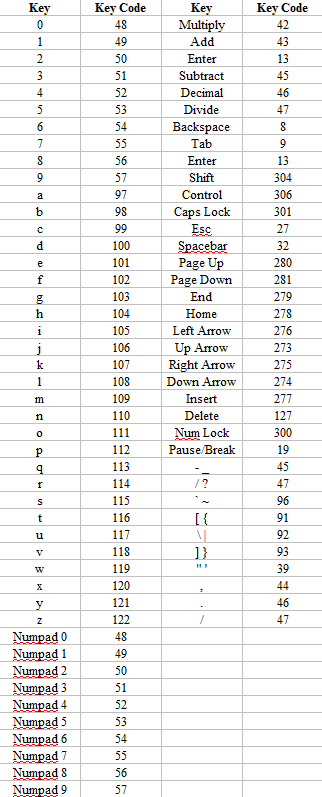
evsieve, find keycodes: evsieve --input /dev/input/event* --print
evsieve, In a --map argument, the first keycode (key:<keycode>) sends all subsequent keycodes together.
Key Substitutions
AHK
|
MAME
Linux native |


 (hold)


 ::
::


|
2026 crap:
BGFX, HLSL, and GLSL on Reddit /NoQuarter/emulators/mame-linux/mame -skip_gameinfo <rom> c:\NoQuarter\emulators\mame-windows/mame.exe -skip_gameinfo <rom> First run: mame -cc Showed up in "Toggle Debugger" and "Toggle Post-Processing". Clear these bindings. Showed up in "Toggle Debugger" and "Toggle Post-Processing". Clear these bindings.
 Is supposed to be "Decrease frame skip", but it wasn't set. Check and clear this binding if necessary. Is supposed to be "Decrease frame skip", but it wasn't set. Check and clear this binding if necessary.
|
|
|
UXME
Linux native |
/NoQuarter/emulators/uxme-0.171-4/uxme.linux -skip_gameinfo <romspath>/<rom> Defender 8-way patch. |
|
|
|
Flycast
Linux native |
ln -s /NoQuarter/emulators/flycast-linux/configfolders/dotconfig/flycast ~/.config ln -s /NoQuarter/emulators/flycast-linux/configfolders/dotlocal.share/flycast ~/.local/share Half-remembered emulator manual configuration: Settings::Controls::Physical Devices::System = SDL, Name = Keyboard::"Port" dropdown, set to "All" When you go to the controller mapping screen, by clicking [map] next to a port in the Settings::Controls screen, make sure the dropdown is the correct value for either "Arcade" or "Dreamcast"
/NoQuarter/emulators/flycast-linux/configfolders/dotconfig/flycast/emu.cfg cd /NoQuarter/emulators/flycast-linux/configfolders/dotconfig/flycast/mappings/ cp <inputdevice>_<data1>.cfg SDL_Keyboard_arcade.cfg
/NoQuarter/emulators/flycast-linux/flycast
rend.Resolution is the vertical resolution (height). The horizontal resolution is automatically calculated to maintain the aspect ratio. |
|
|
|
Dolphin - Triforce
Linux native |

|
/NoQuarter/emulators/dolphin-triforce-linux/dolphin-emu -b -e <romspath>/<rom> Old emulator: Create the empty file portable.txt to force use of portable configuration. Use AHK file to send F1 to load th MK GP save state. |
|
|
Supermodel
|
|
/NoQuarter/emulators/supermodel-linux/supermodel -fullscreen -res=<hardware1> <romspath>/<rom> |
|
| TeknoParrot |
|
|
Stella
Linux native |
|
stella <romspath>/<rom>
|
|
|
FS-UAE Linux native |
...
...
|
NQ HB install: ln -s /NoQuarter/emulators/fs-uae-linux/FS-UAE /home/sean/Documents/FS-UAE /NoQuarter/emulators/fs-uae-linux/FS-UAE/Configurations/Default.fs-uae
There is an "amiga_model" option. It defaults to A500. Other useful values are probably A1200 and CD32. AI: The "AGA" in the name of the A1200 is a graphics chipset, so it is possible that the A600 and A4000 also have this chipset, but I don't know if they are supported by FS-UAE.
There are nine global save states (no per-game save states). There is no info from the emulator, or in the save state file name, as to which game a save state belongs to, so be careful. "F12" is the emulator menu. This is where you do can everything: load, save, exit, etc... The joystick buttons are RAlt and RCtrl. These cannot be remapped. I believe the developer used these because he wants the rest of your KB to be used as the virtual Amiga's KB, and the Amiga probably didn't have a RAlt and RCtrl. I think the common Amiga joystick has just one fire button. For games which require a second button, they usually let "space" serve as a second button. It seems most games already have "p" (on the Amiga kb, which is the same as your kb's "p") mapped to pause the game
evsieve has been working well for outside-the-emulator input remapping. The emulator does support gamepads, so when I get that working, there won't be a mapping issue for the cabinet. I am using the "data1" field in my DB for the second disc image, when it is required. I am using the "data2" field for the rom version. Use 3.1 for the later model Amiga "AGA" and CD32. For everything else, you probably want 1.3 One drive, one disc:
/NoQuarter/emulators/fs-uae-linux/Linux/x86-64/fs-uae --kickstart_file=/NoQuarter/emulators/fs-uae-linux/bios/kickstart-<data2>.rom
/NoQuarter/emulators/fs-uae-linux/Linux/x86-64/fs-uae --kickstart_file=/NoQuarter/emulators/fs-uae-linux/bios/kickstart-<data2>.rom
/NoQuarter/emulators/fs-uae-linux/Linux/x86-64/fs-uae --kickstart_file=/NoQuarter/emulators/fs-uae-linux/bios/kickstart-<data2>.rom
OLD:
fs-uae ~/Documents/FS-UAE/Configurations/<game>.fs-uae --fullscreen=1 --load_state=1 --keep_aspect=1 Linux
~/Documents/FS-UAE
Following the above procedure is not enough to get Overkill running from scratch. I can't get it past the crack team intro. However I did it before, I have the save state for once it's past the crack team intro, so it works when you load it with the save state, but I don't know how to recreate the save state. |
|
|
Neko Project II W
Windows/Wine |
Exit:
PC-98 Bot. Probably the best place to start, but focused on NP2/W. Some LaunchBox-based info from 2016 Quick np21nt setup, in case it helps with the version I'll be using Reddit 2024, some folks recommending NP2/W, in general. Whereas I'm currently leaning towards NP2/K (Kai). |
|
|
BigPEmu
Linux native |
Online Manual |
|
|||||||||||||
|
Ares (tg16)
Linux native |
Ares, generalSettings -> Shader -> "edge-smoothing" -> xbrz -> 4xbrz-linear (also tried scalefx, but did not see a difference)
Ares has only one global key mapping. In the "Input" menu, there is a drop-down for all controllers for all emulatated systems.
NEC/TG-16/SG-16Reddit Bios infocd /NoQuarter/emulators/ares-linux/hbcontrols cp _basesettings.bml settings.bml sed -i -e '/PLAYER1/{r <data1>' -e 'd}' settings.bml sed -i -e '/PLAYER2/{r <data2>' -e 'd}' settings.bml cp settings.bml ../dotconfigfolder /NoQuarter/emulators/ares-linux/ares-v147-anylinux-x86_64.AppImage --fullscreen --system "PC Engine" <romspath>/<gamefolder>/<rom> cd /NoQuarter/emulators/ares-linux/hbcontrols cp _basesettings.bml settings.bml sed -i -e '/PLAYER1/{r <data1>' -e 'd}' settings.bml sed -i -e '/PLAYER2/{r <data2>' -e 'd}' settings.bml cp settings.bml ../dotconfigfolder /NoQuarter/emulators/ares-linux/ares-v147-anylinux-x86_64.AppImage --fullscreen --system "PC Engine CD" <romspath>/<gamefolder>/<rom> cd /NoQuarter/emulators/ares-linux/hbcontrols cp _basesettings.bml settings.bml sed -i -e '/PLAYER1/{r <data1>' -e 'd}' settings.bml sed -i -e '/PLAYER2/{r <data2>' -e 'd}' settings.bml cp settings.bml ../dotconfigfolder /NoQuarter/emulators/ares-linux/ares-v147-anylinux-x86_64.AppImage --fullscreen --system "SuperGrafx" <romspath>/<gamefolder>/<rom> cd /NoQuarter/emulators/ares-linux/hbcontrols cp _basesettings.bml settings.bml sed -i -e '/PLAYER1/{r <data1>' -e 'd}' settings.bml sed -i -e '/PLAYER2/{r <data2>' -e 'd}' settings.bml cp settings.bml ../dotconfigfolder /NoQuarter/emulators/ares-linux/ares-v147-anylinux-x86_64.AppImage --fullscreen --system "SuperGrafx CD" <romspath>/<gamefolder>/<rom>
|
|
|||||||||||||
|
Ares (snes)
Linux native |
cd /NoQuarter/emulators/ares-linux/hbcontrols cp _basesettings.bml settings.bml sed -i -e '/PLAYER1/{r <data1>' -e 'd}' settings.bml sed -i -e '/PLAYER2/{r <data2>' -e 'd}' settings.bml cp settings.bml ../dotconfigfolder /NoQuarter/emulators/ares-linux/ares-v147-anylinux-x86_64.AppImage --fullscreen --system "Super Famicom" <romspath>/<rom> |
|
|||||||||||||
|
Ares (genesis)
Linux native |
cd /NoQuarter/emulators/ares-linux/hbcontrols cp _basesettings.bml settings.bml sed -i -e '/PLAYER1/{r <data1>' -e 'd}' settings.bml sed -i -e '/PLAYER2/{r <data2>' -e 'd}' settings.bml cp settings.bml ../dotconfigfolder /NoQuarter/emulators/ares-linux/ares-v147-anylinux-x86_64.AppImage --fullscreen --system "Mega Drive" <romspath>/<rom> |
|
|||||||||||||
|
MESS
Linux native |
(hold)
::
|
/NoQuarter/emulators/mame-177/mess64.linux -skip_gameinfo genesis -cart <rom>
MESS Systems MESS command line options System status |
|
|
Mupen
Linux native |
|
evsieve --input /dev/input/by-id/usb-0d62_HP_USB_Business_Slim_Keyboard-event-kbd grab --map key:1 key:enter --output & mupen64plus --resolution 1920x1080 <romspath>/<rom> TODO: read the resolution from the DB No GUI - need to edit cfg files. Which also means it won't run without a rom. Do not edit ~/.config/mupen64plus/mupen64plus.cfg for control config. Any changes made here will get over-written by the emulator. Make control changes in /usr/local/share/mupen64plus/InputAutoCfg.ini 2.0 for XP 32 2.5 for 7 64 Save slots are hard-coded to 1-9, so I use AHK to remap P1 and P2 start buttons to "i" and "o" c:\noquarter\emulators\mupen64plus-2.x\InputAutoCfg.ini
/home/sean/.config/mupen64plus/mupen64plus.cfg
|
|
|
Ymir
Linux native |
/NoQuarter/emulators/ymir-linux/ymir-sdl3 -f -d <romspath>/<gamefolder>/<rom> |
|
|
|
Duckstation
Linux native |
I think if you have multiple keys mapped to a virtual gamepad button, either none will work, or only one will work. |
chdman createcd -i game.cue -o game.chd cd /NoQuarter/emulators/duckstation-linux/hbcontrols cp _basesettings.ini settings.ini sed -i -e '/PLAYER1/{r <data1>' -e 'd}' settings.ini cp settings.ini .. /NoQuarter/emulators/duckstation-linux/DuckStation-x64.AppImage "<romspath>/<gamefolder>/<rom>" -batch -fullscreen |
|
|
PCSX2
Linux native |


|
Convert .iso to .chd chdman createdvd -i game.iso -o game.chd /NoQuarter/emulators/pcsx2-linux/pcsx2-v2.6.3-linux-appimage-x64-Qt.AppImage <romspath>/<rom> Remap hotkeys in PCSX2_keys.ini Visual control mapping. Supports mixed input. |
|
Flycast - DreamcastLinux native |
Installationln -s /NoQuarter/emulators/flycast-linux/configfolders/dotconfig/flycast ~/.config ln -s /NoQuarter/emulators/flycast-linux/configfolders/dotlocal.share/flycast ~/.local/share Configuration
"General" tab
	cable = VGA

"Video" tab
	"Transparent Sorting"
		(*) Per Pixel
	"Rendering Options"
		x2|x3|x4   this setting is the closest the emu has to AA
	"Advanced"
		[x] Fix upscale bleeding edge - want this on, but might need to turn off for some fighting games
	anasotropic filtering = *16
/NoQuarter/emulators/flycast-linux/configfolders/dotconfig/flycast/emu.cfg [config notes] /NoQuarter/emulators/flycast-linux/configfolders/dotconfig/flycast/mappings/*.cfg Excellent. Flycast uses a dedicated controller config file. (Well, one file for Dreamcast, and one file for the arcade systems.) /NoQuarter/emulators/flycast-linux/vmu/vmu_save_A[1|2].bin Although the path is configurable, I don't see this file in the config UA. I believe the names are hard-coded. The player 1 controller in slot A has two VMUs attached. Update: The first memory card was filling up, but the VM was not seeing the second memory card. So I switched to per-game VMUs. [X] HLE - will use the flycast built-in BIOS (reicast) Running a gamecd /NoQuarter/emulators/flycast-linux/configfolders/dotconfig/flycast/mappings/ cp <inputdevice>_<data1>.cfg SDL_Keyboard.cfg cd /NoQuarter/emulators/flycast-linux/vmu cp <data1>.bin vmu_save_A1.bin
/NoQuarter/emulators/flycast-linux/flycast
Command line notesrend.Resolution is the vertical resolution (height). The horizontal resolution is automatically calculated to maintain the aspect ratio. Flycast uses a dedicated controller config file. (Well, one file for Dreamcast, and one file for the arcade systems.) External linksDreamcast SavesDreamcast Game Database |
|
|
|
Dolphin - GameCube
Linux native |
|
Recommended 2 * 3.0 GHz processor and/or newer than 2008. Recommended graphics card supporting D3D 11 / OpenGL 4.4 (minimum D3d 10 / OpenGL 3.0) Gamecubeportable.txt /NoQuarter/emulators/dolphin-gamecube-linux/user/Config/ Lots o' action here. After exiting the emulator, a bunch of files and folders here get updated.
/NoQuarter/emulators/dolphin-gamecube-linux/GameSettings/*.ini Looks like these are Dolphin-recommnended settings for each game, which differ from the default. Because SIFUABS, I question if this folder is used when in portable mode. /NoQuarter/emulators/dolphin-gamecube-linux/user/GC/MemoryCardA.USA.raw /NoQuarter/emulators/dolphin-gamecube-linux/user/GC/MemoryCardB.USA.raw /NoQuarter/emulators/dolphin-gamecube-linux/user/Config/Profiles/GCPad/<myconfig>.ini This is where named controller configurations done in the UI are saved, and where to put your per-game controller configs referenced from the per-game config files.
/NoQuarter/emulators/dolphin-gamecube-linux/user/GameSettings/<gameid>.ini
[Controls]
PadProfile1 = <base file name of my controller config. this id is only used here> Note that you must leave off the .ini extension /NoQuarter/emulators/dolphin-gamecube-linux/dolphin-emu -b -e <romspath>/<rom> Wii/NoQuarter/emulators/dolphin-wii-linux/dolphin-emu -b -e <romspath>/<rom> olddolphin-emu-nogui -e /NoQuarter/roms/gamecube/<rom>
~/.cache/dolphin-emu
Create the empty file portable.txt to force use of portable configuration. 2019 Xubuntu 18.04: Dolphin does not respect the "portable.txt" flag file. Using the "-u" option on the command line to point it to Noquarter's Dolphin config folder. Windows Dolphin understands the forward slash as a separator in paths, making it easier to share the same config files between Windows and Linux. When installing to a new Linux machine:
There is no longer a full screen flag on the command line. |
|
|
Dolphin - Wiimote
Linux native |
|
Made this emulator variant for Kirby's Return To Dreamland Wii saved games Recommended 2 * 3.0 GHz processor and/or newer than 2008.Recommended graphics card supporting D3D 11 / OpenGL 4.4 (minimum D3d 10 / OpenGL 3.0) /NoQuarter/emulators/dolphin-wii-wiimote-linux/dolphin-emu -b -e <romspath>/<rom> dolphin-emu-nogui -e /NoQuarter/roms/gamecube/<rom>
~/.cache/dolphin-emu
Create the empty file portable.txt to force use of portable configuration. 2019 Xubuntu 18.04: Dolphin does not respect the "portable.txt" flag file. Using the "-u" option on the command line to point it to Noquarter's Dolphin config folder. Windows Dolphin understands the forward slash as a separator in paths, making it easier to share the same config files between Windows and Linux. When installing to a new Linux machine:
There is no longer a full screen flag on the command line. |
|
|
RCPS3
Linux native |
PKG install: evsieve --input /dev/input/by-id/usb-0d62_HP_USB_Business_Slim_Keyboard-event-kbd grab --map key:esc key:leftalt key:f4 --output & /NoQuarter/emulators/rpcs3-linux/rpcs3-v0.0.40-19058-2ba7756c_linux64.AppImage --no-gui --fullscreen <romspath>/<gamefolder>/<rom> PKG:evsieve --input /dev/input/by-id/usb-0d62_HP_USB_Business_Slim_Keyboard-event-kbd grab --map key:esc key:leftalt key:f4 --output & /NoQuarter/emulators/rpcs3-linux/rpcs3-v0.0.40-19058-2ba7756c_linux64.AppImage --no-gui --fullscreen <romspath>/<gamefolder>/<rom>
|
|
|
Xemu
Linux native |
evsieve --input /dev/input/by-id/usb-0d62_HP_USB_Business_Slim_Keyboard-event-kbd grab --map key:esc key:leftctrl key:q --output & /NoQuarter/emulators/xemu-linux/xemu -full-screen -dvd_path <romspath>/<rom> |
|
|
|
Xenia
Linux native |
|
|
|
VBA-M
Linux native |
dotconfigfolder/vbam.ini Bilinear Filter to remove pixelation Frame Skip = 0 For fullscreen, the command line option doesn't seem to work. Set "full screen" and "maximize" (maybe?) in vbam.ini Does not support multiple real inputs mapped to the same virtual input. The internal save files go in the same folder as the rom, with the same base name as the rom, and with a .sav extension. evsieve --input /dev/input/by-id/usb-0d62_HP_USB_Business_Slim_Keyboard-event-kbd grab --map key:esc key:leftctrl key:q --output & /NoQuarter/emulators/vbam-linux/visualboyadvance-m <romspath>/<rom> |
|
|
|
VBA-M
Linux native |
dotconfigfolder/vbam.ini Bilinear Filter to remove pixelation Frame Skip = 0 For fullscreen, the command line option doesn't seem to work. Set "full screen" and "maximize" (maybe?) in vbam.ini Does not support multiple real inputs mapped to the same virtual input. The internal save files go in the same folder as the rom, with the same base name as the rom, and with a .sav extension. cd /NoQuarter/emulators/vbam-linux/dotconfigfolder cp <inputdevice>_<data1>.ini vbam.ini evsieve --input /dev/input/by-id/usb-0d62_HP_USB_Business_Slim_Keyboard-event-kbd grab --map key:esc key:leftctrl key:q --output & /NoQuarter/emulators/vbam-linux/visualboyadvance-m <romspath>/<rom> |
|
|
|
MelonDS
Linux native |
|
||
|
PPSSPP
Linux native |

|
/NoQuarter/emulators/ppsspp-linux/PPSSPP-v1.20.3-anylinux-x86_64.AppImage --fullscreen <romspath>/<rom> ~/.config/ppsspp Might want to open the config file and set save file encryption to false. It's only for if you want to copy save files to a real device. Some downloaded saves might not be compatible with it.
config is under .\memstick
Cropping screenshots to 360 * 520 works well, and then resize of course in NQ. Cropping screenshots to 450 * 650 works well, and then resize of course in NQ. Supports mixed input |
|
Windows Games
WINE |


|
export WINEPREFIX=/home/sean/winegames/<data1> cd /home/sean/winegames/<data1>/drive_c/<subfolder> wine start <data2>
Cho-ren-sha 68k:
Guilty Gear XX ACP: Mortal Kombat 9 (Komplete): All menu functionality is keyboard hard-coded defaults. Only character control can be remapped. Skip intro movies: C:\Program Files (x86)\Mortal Kombat Complete Edition\DiscContentPC\Movies remove:
Super Fightin' Spirit:
Double Dragon Reloaded |
|
|
Windows Emulators
WINE |
|
||
| Name |


|
SAVE STATES:
Emulators for which I use save states: & are hard-coded in PCSX2 for one of its plugins (see the ini file in PCSX2). This should not eliminate these keys from consideration because you should not be using that emulator's save states.
 through through  are off-limits for the save/load buttons because MAME will also count save/load command button as the save slot. are off-limits for the save/load buttons because MAME will also count save/load command button as the save slot.
So the save/load buttons (but not the slot selection buttons) need to be non-alpha-numeric. The best bet is probably a F[1-12] button. This means that KeyWiz is a poor choice for KB encoder for Linux, since it has no default F[1-12] ports, and you cannot reconfigure KeyWiz in Linux. Also, AHK does not work with MAME, so you would have to maintain seperate Linux and Windows configs if using KeyWiz (and even then, I don't know if xmodkeys works with MAME). So just use F[1-12] keys. & are hard-coded in Fusion for save and load. So let's try using these.
& should work as the save selection buttons. In MAME, these are the coin buttons, and adding a coin as you select the state will not be a big deal. For consoles, these were planned to be used as the "select" buttons, but the "select" button is virtually unused, and for those games which do use it, I now map "select" to one of the game-play buttons on a per-game basis, as needed.
WINE: Linked /NoQuarter to ~/.wine/drive_c so paths passed to WINE can use C: instead of Z: |
System/Games |